


Report Schedules
Set up automatic report generation by specifying when and how often to create reports. This ensures timely updates and consistent monitoring of key data.
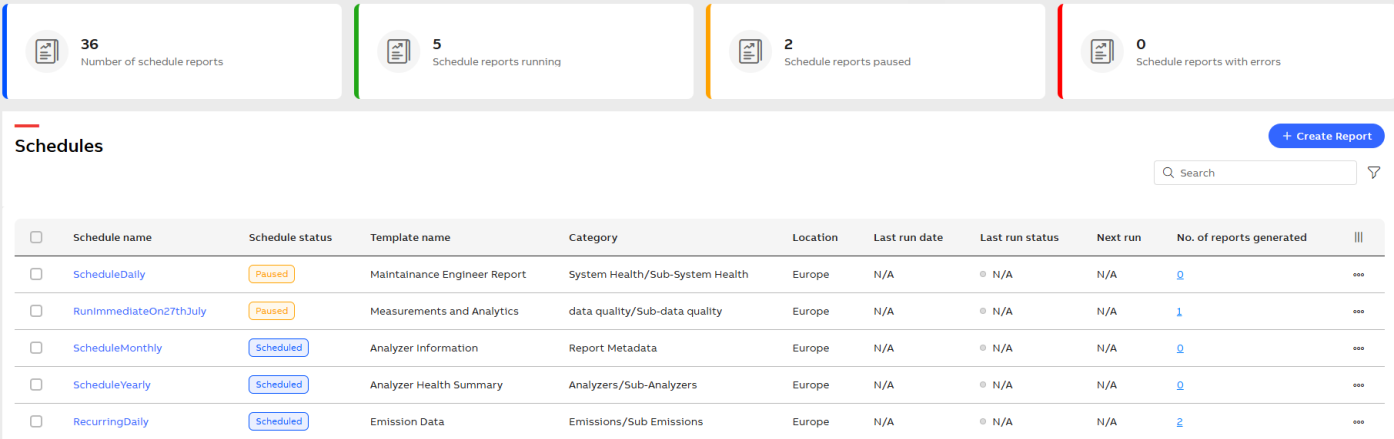
Report Schedules
Display Tiles
You can view the cards Number of schedule reports, Schedule reports running, Schedule reports paused and Schedule reports with errors on the top of the page.
-
Number of schedule reports: Total count of reports set to run automatically at specified times.
-
Schedule reports running: Reports currently in progress as per their scheduled execution time.
-
Schedule reports paused: Reports with automated execution temporarily halted.
-
Schedule reports with errors: Reports that failed to run due to execution issues or system errors.
Schedules
This section displays and manages report schedule details.
Create Report: Create a new report. For more information, see Generate Report.
Search: Search for the specific schedule.
Filter: Filter reports based on their scheduled status.
-
Click Filter icon. Filter By popup appears.
-
Enable the appropriate status from Schedule status list.
-
Use Templates dropdown to select the template, or use the search option to find one.
-
Use Categories dropdown to select the category, or use the search option to find one.
-
Click Clear All to reset all selected filters and inputs.
The following table describes the schedules details:
|
Column Name |
Description |
|---|---|
|
Schedule name |
Schedule name for identifying and organizing automated reporting tasks. Click the value in the column. For more information, see Report Parameters and Scheduling. |
|
Schedule status |
Displays the current status of the schedule. |
|
Template name |
Title used to identify the report template for organizing and presenting data. |
|
Category |
Label used to categorize the report or template. |
|
Location |
Indicates where the report or data is stored or relevant to. |
|
Last run date |
Displays the most recent date the report or scheduled task was executed. |
|
Last run status |
Indicates the outcome of the most recent report or task execution. |
|
Next run |
Displays the scheduled date and time for the upcoming execution of the report. |
|
No. of reports generated |
Total count of all reports created within a specified time frame or category. For more information, see Reports Generated. |
|
Show/Hide columns |
Enable the necessary columns. |
Following are the options to manage schedules:
-
Enable the checkbox next to the schedule.
-
Once selected, optional actions can be performed on individual schedules, or select all to apply bulk actions such as Pause, Resume, and Delete for all the schedules simultaneously.
-
Edit: Modify the schedule details.
-
Resume: Restart a paused schedule.
-
Pause: Temporarily stop the schedule.
-
View Parameters: Review report metadata and input criteria, including schedule name, creator, creation date, category, reporting period, and functional location code.
-
Delete: Permanently remove the schedule.
-
-
Click the value in the No. of reports generated column, and Generated reports pop-up appears.
-
You can view the Schedule Name, Status, Category, Template, and a table with the columns: Generated By, Period, and Created By.
-
Enable the checkbox next to the desired report.
-
Once selected, you can perform optional actions such as Download the report as a pdf or Delete the desired report. You can also select all reports and click Delete to remove them.
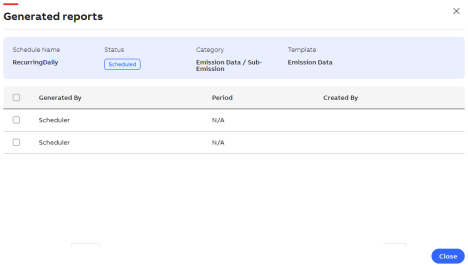
Generated Report Popup